FHX STUDIO / EDITION 2 / SEPTEMBER 2026
Investigate with context.
A practical user manual with nine genuine screenshots from the full application. All illustrated configuration is fictional.
Contents · 16 sections
01 Your first useful investigation02 Choose the right workspace03 Open an export and establish its identity04 Find your way around the logic workspace05 Inspect settings and their origins06 Read complete expressions07 Navigate composite instances08 Follow uses and potential writers09 Trace a signal to configured I/O10 Review communications mappings11 Compare two named snapshots12 Keep evidence in Fieldbook13 Save the right things before leaving14 Desktop and phone controls15 Recover without losing the question16 Write a finding another engineer can followQUICK START · PUBLIC SAMPLE
Your first useful investigation
Choose a question from the example library. Cards cover permissives, tuning, overrides, physical I/O, device mappings, potential writers, and recording evidence. No file or account is required.
- Choose Trace a permissive. Search for pressure and select 50PIC_10001, Feed header pressure control.
- Select CND1 in the diagram. Choose Open expression reader. Read the complete condition, then try text sizing, wrapping, or Find text.
- Follow 50HS_10001 / PV_D.CV. Notice the distinction: the module is present, but this sample supplies no PV_D value. Return to the pressure loop.
- Select AI1 and choose Follow configured input. Inspect the signal's I/O node, CHARM slot, channel, and execution-controller assignment.
- Choose Finish investigation in the guide. Download sample finding to keep the configuration facts and open checks together.
Hide guide lets you explore freely; Show guide brings the current step back. All examples returns to the cards and preserves each investigation’s progress in this tab. Restart example clears only the current investigation; reloading or leaving the sample can clear all progress.
The sample uses curated records and representative controls. The screenshots elsewhere in this manual show the actual full application; its menus and navigation differ from the public sample.
After finishing, try the suggested related example or Request a workflow review. The inquiry remembers the selected workflow and offers an editable starter message; nothing is sent until you submit. The Fieldbook example is a fixed practice note, not the full application’s note editor.
ACCESS & SCOPE
Choose the right workspace
FHX Studio helps engineers investigate exported DeltaV configuration: logic, parameters, known references, configured equipment, and investigation records.
| Experience | What you can do |
|---|---|
| Public guided sample | Choose seven investigations across five curated fictional records. Inspect configuration, follow references, classify a practice note, and download findings. |
| Full application evaluation | Open supported FHX exports and investigate the available configuration. Access, compatible workflows, and support are arranged privately. |
| Owner troubleshooting view | The owner's raw-FHX troubleshooting interface is separate. It is not part of the public sample or customer instructions. |
Arrange a private evaluation through the FHX Studio product page. Describe the engineering question and expected workflow without attaching plant exports, credentials, or confidential configuration to the initial inquiry.
Confirm access, supported export scope, data handling, and any price before payment. The public sample does not activate a subscription or unlock the full application.
This manual documents the customer-view evaluation interface captured with fictional data. It is a user guide, separate from the internal Development & Business Handbook. It does not establish universal DeltaV-version support, live connectivity, or a certified engineering replacement.
FULL APPLICATION · FILES
Open an export and establish its identity
Start each review by confirming which configuration snapshot is open. A correct answer about the wrong export is still the wrong answer.
- Enter the separately arranged full application. Choose Open FHX export in the top bar or the Workspace actions menu, then select an authorized text FHX file.
- Wait for indexing to finish. The application indexes configuration in the background and opens records on demand. Use Cancel if you chose the wrong file.
- Check the system/file identity in the top bar. Open system and export details to inspect filename and timestamp information.
- Check the available module and system records. Missing classes, definitions, or referenced records can limit what the application can resolve.
- Record the filename, snapshot date and its source, and the relevant module or path in your investigation notes.
| Label or condition | How to interpret it |
|---|---|
| Export timestamp | A date obtained from supported export metadata. Read the provenance label. |
| File modified | File metadata fallback; it is not necessarily the time the controller configuration was exported. |
| Demo / fictional data | Training configuration only. Values are examples, never current readings. |
| Partial or unsupported content | Results cover the supplied, supported records; absence is not proof that an object does not exist in the plant. |
The full parser includes text-encoding handling for UTF-8 and UTF-16. Compatibility still depends on the record families and contents of the supplied export. Start with a representative file during evaluation.
Keep the original FHX under your normal project controls. Reloading the application requires reopening the export; it is not a cloud backup of that file.
FULL APPLICATION · LOGIC
Find your way around the logic workspace
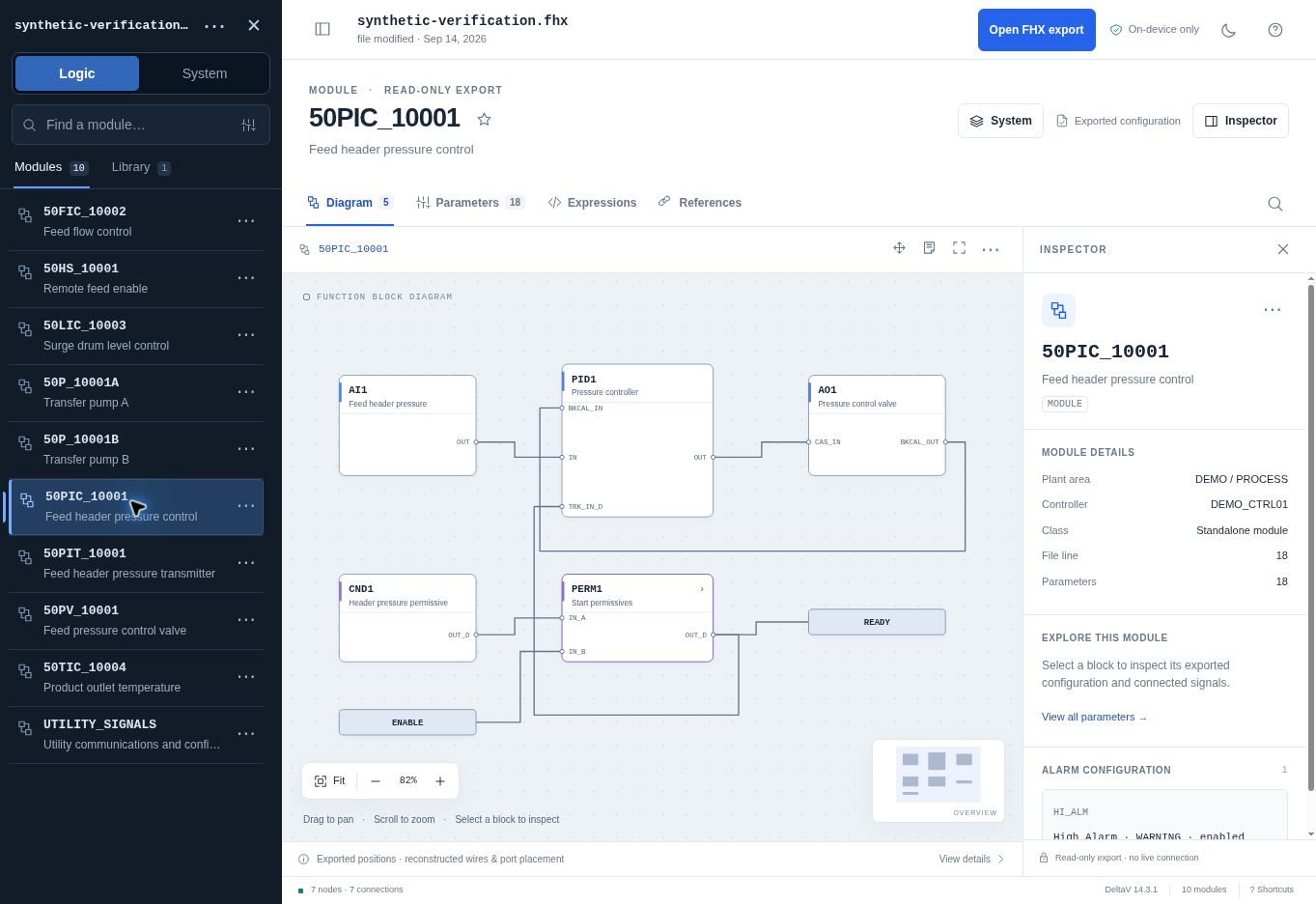
- Use Find a module to search tags and descriptions. Select the matching record; confirm its tag and description above the diagram.
- Switch between Modules and Library in the explorer. Library definitions are not the same as a particular module instance.
- Use Diagram, Parameters, Expressions, or References for the current task. The System button switches to equipment and configuration relationships.
- Select a block to inspect it. Use Fit if the diagram moves out of view, or close the inspector to give the diagram more room.
The illustrated pressure module contains AI1, PID1, AO1, CND1, PERM1, and module attributes ENABLE and READY. The full application displays exported layout information where available and reconstructs wires and port placement; the quality strip explains the layout evidence.
Star records for later return. Open the explorer's filter controls to narrow by plant area or starred records. Clear filters when a known record appears missing.
FULL APPLICATION · PARAMETERS
Inspect settings and their origins
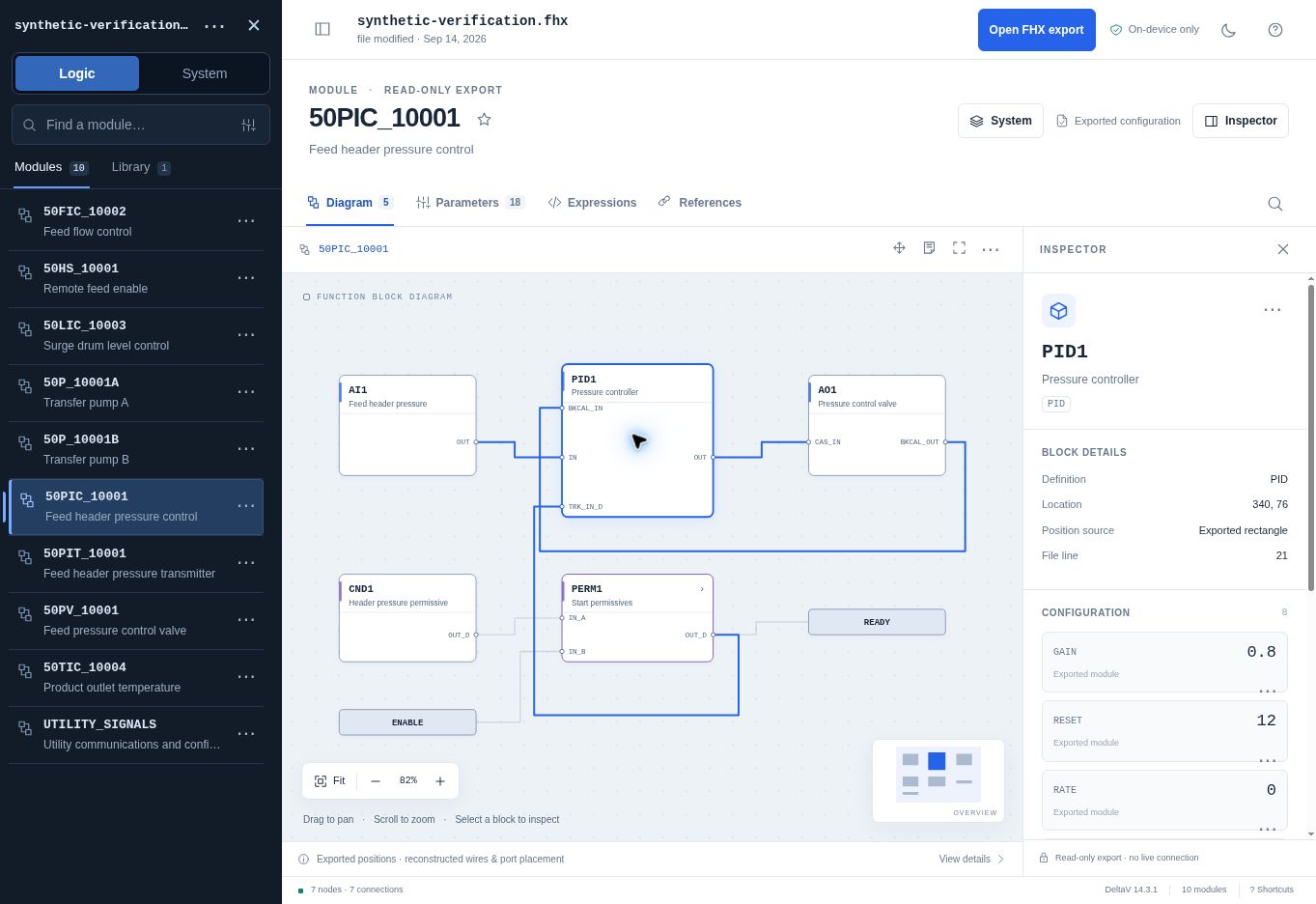
- Select PID1 in the pressure-loop diagram. Read GAIN, RESET, RATE, and the origin label under each setting.
- Choose Inspect all parameters, or open the Parameters tab, when the compact inspector does not show the whole set.
- Use Search current view to narrow parameter names, values, or reference paths. Keep the module and composite context visible.
- Use a parameter's actions menu for the available evidence and navigation actions. Include the exact parameter path in the finding.
Do not infer units that the export or approved definition does not supply. Preserve the displayed number and its parameter context; confirm units and behavior in the appropriate engineering documentation.
FULL APPLICATION · EXPRESSION READER
Read complete expressions
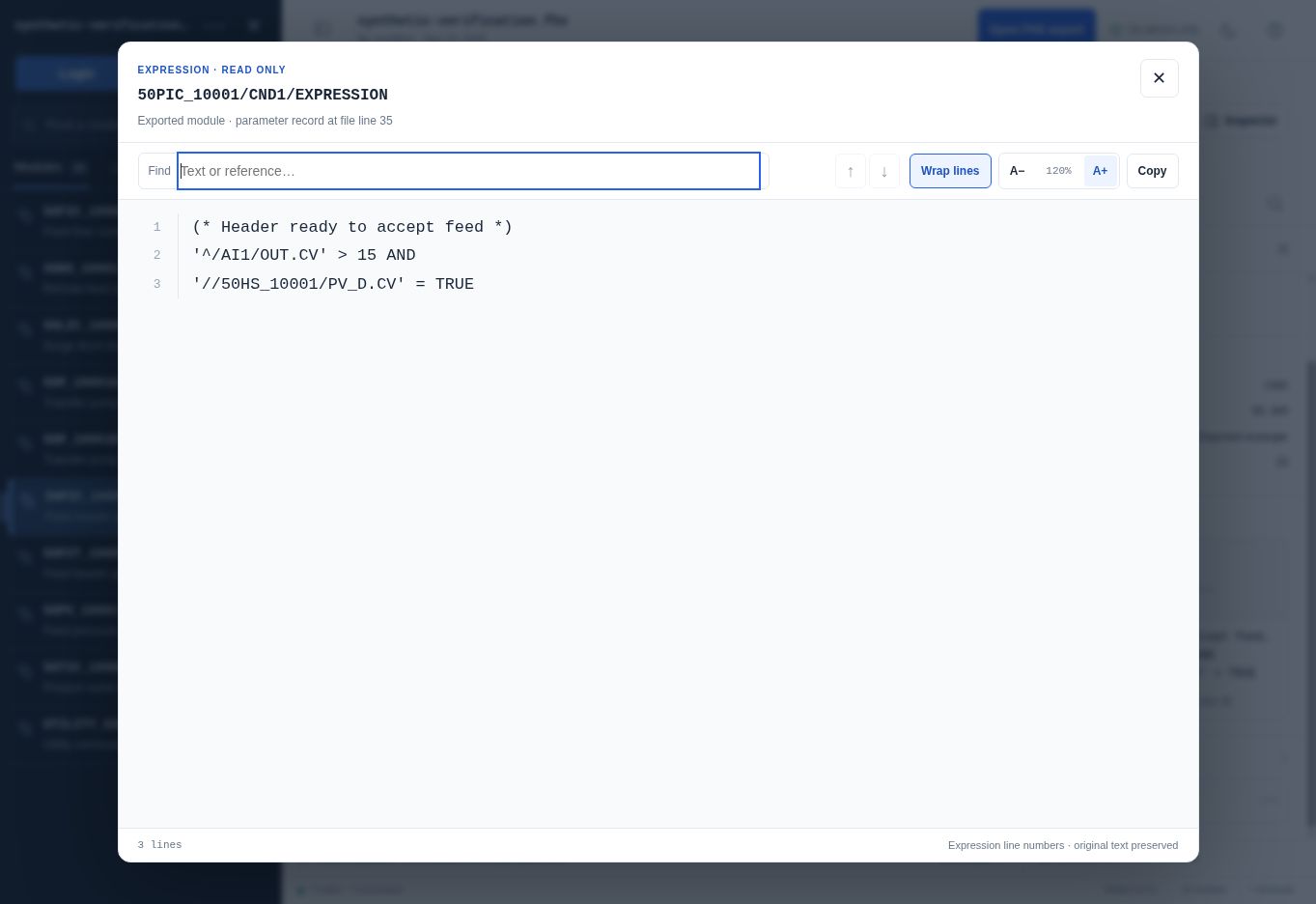
- Select CND1, then Read expression. You can also open the same reader from an expression entry in the data views.
- Use A- and A+ to change text size. Use the percentage control to reset. Toggle Wrap lines to fit long lines without changing the expression text.
- Enter a literal term in Find, then move through matches with the previous/next controls. Copy copies the expression for an approved investigation record.
- Close the reader to return to the module context. Investigate referenced tags through References, module search, or System rather than treating the expression as a live diagnosis.
Reader line numbers refer to lines inside the expression. A parameter-record file-line label identifies a separate source location. Keep those two kinds of line references distinct.
FULL APPLICATION · INSTANCE CONTEXT
Navigate composite instances
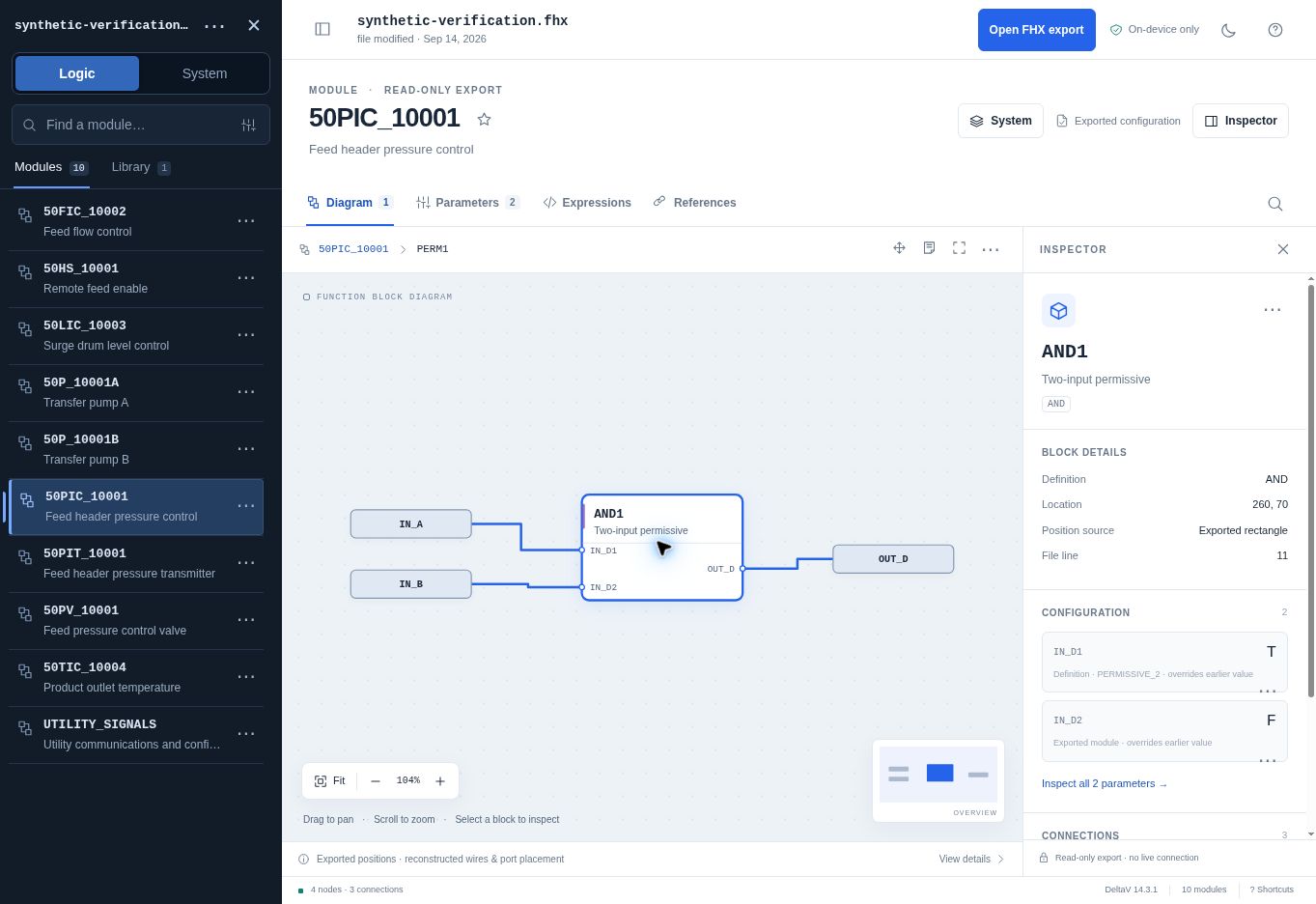
- Return to the pressure module. Select PERM1 and choose Open composite.
- Check the breadcrumb: the view is inside that module's PERM1 instance. Select AND1 to inspect its settings and connections.
- Compare origin labels. The fictional PERMISSIVE_2 definition supplies T for IN_D2; the module instance overrides that configured value with F.
- Use the module breadcrumb to move back out. Compare a library definition only when you deliberately want the reusable definition rather than this instance.
In the sample, CND1/OUT_D feeds PERM1/IN_A, ENABLE feeds PERM1/IN_B, and PERM1/OUT_D connects to READY and PID1/TRK_IN_D. This is a configuration relationship, not a claim that the sample evaluates the loop.
FULL APPLICATION · INVESTIGATION
Follow uses and potential writers
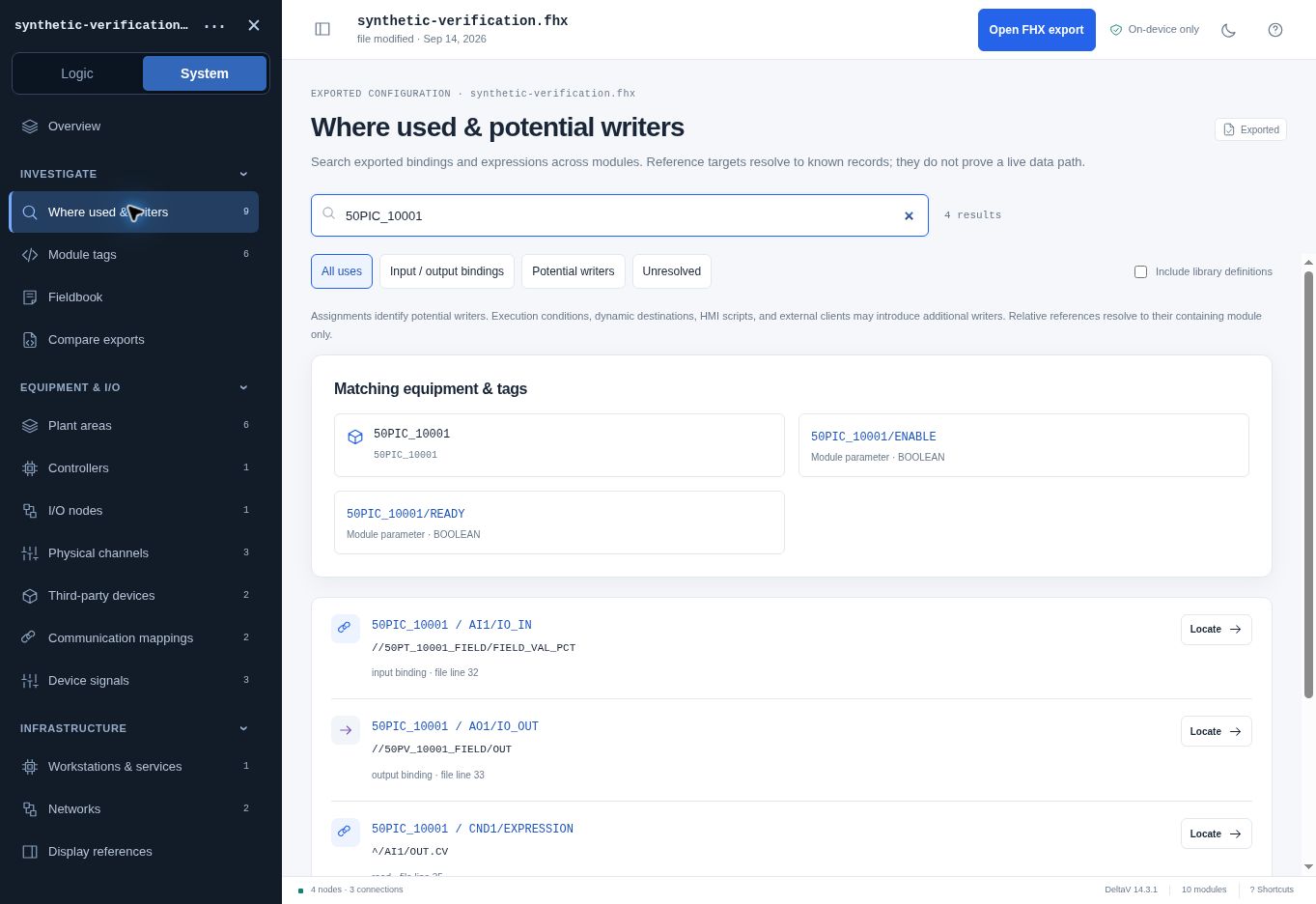
- Open System, then Where used & writers. Search an exact tag, module name, or reference path.
- Review the owning module and parameter, the target path, the classification, and the available source location. Input/output bindings and expression reads answer different questions.
- Use Locate to follow a resolved target, or open the owning parameter to inspect its context. Use the Unresolved filter to review references with missing owners.
- Use Potential writers to identify candidate assignment sites. Inspect their conditions before forming a conclusion about execution.
Diagram upstream/downstream trace actions are scoped to the current diagram level. Feedback and branches are configuration paths; tracing does not execute logic or prove a path is active. HMI scripts, external clients, dynamic references, or missing records may introduce additional writers.
FULL APPLICATION · SYSTEM EXPLORER
Trace a signal to configured I/O
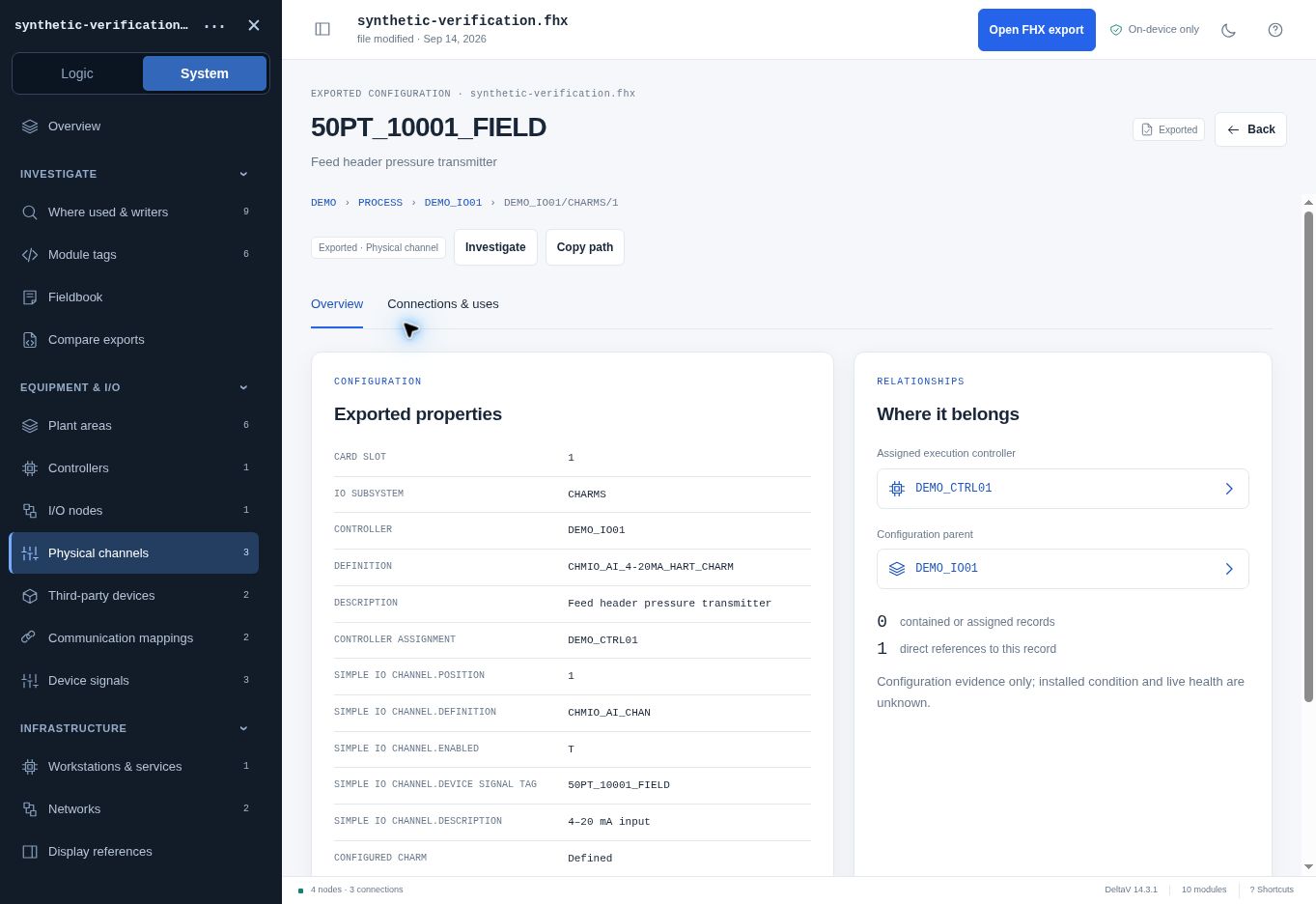
- Read the module input binding. For AI1, the fictional reference is //50PT_10001_FIELD/FIELD_VAL_PCT.
- Open System, then Physical channels. Search the signal tag and select its channel record.
- Read the I/O owner, controller assignment, slot, channel position, definition, and enabled field. Do not collapse those into a single healthy/unhealthy status.
- Open Connections & uses to inspect known relationships. Follow the parent I/O node or execution controller when that context matters.
The channel list also contains an undefined/spare example. A spare record is distinct from a disabled configured channel, an unassigned channel, or a missing definition. System counts are counts of exported records, not a physical inventory audit.
FULL APPLICATION · THIRD-PARTY DEVICES
Review communications mappings
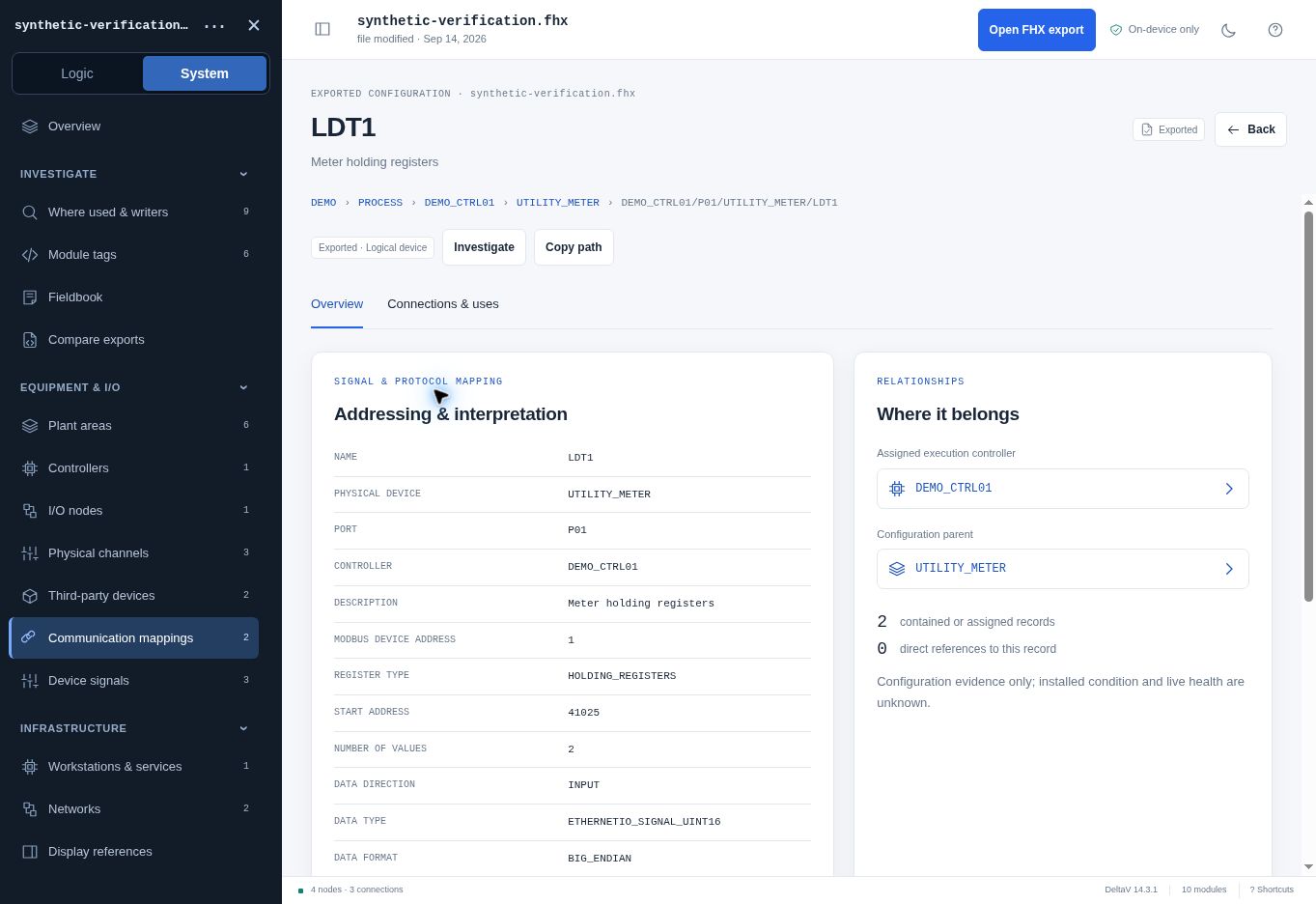
- Open System, then Third-party devices or Communication mappings. Select the complete device path; different devices can have the same LDT name.
- Read the protocol, direction, register type or tag, start address, data type, count, format, and word order where exported.
- Open the mapped signal for its alias, full path, index, and byte/bit fields. Follow its known module bindings.
- Record addressing exactly as exported and compare it with the device documentation before interpreting or implementing a communications change.
An IP address or communications mapping is configuration evidence. It does not show that the device is reachable, that a register is responding, or that scaling and word order have been validated in the field.
FULL APPLICATION · COMPARISON
Compare two named snapshots
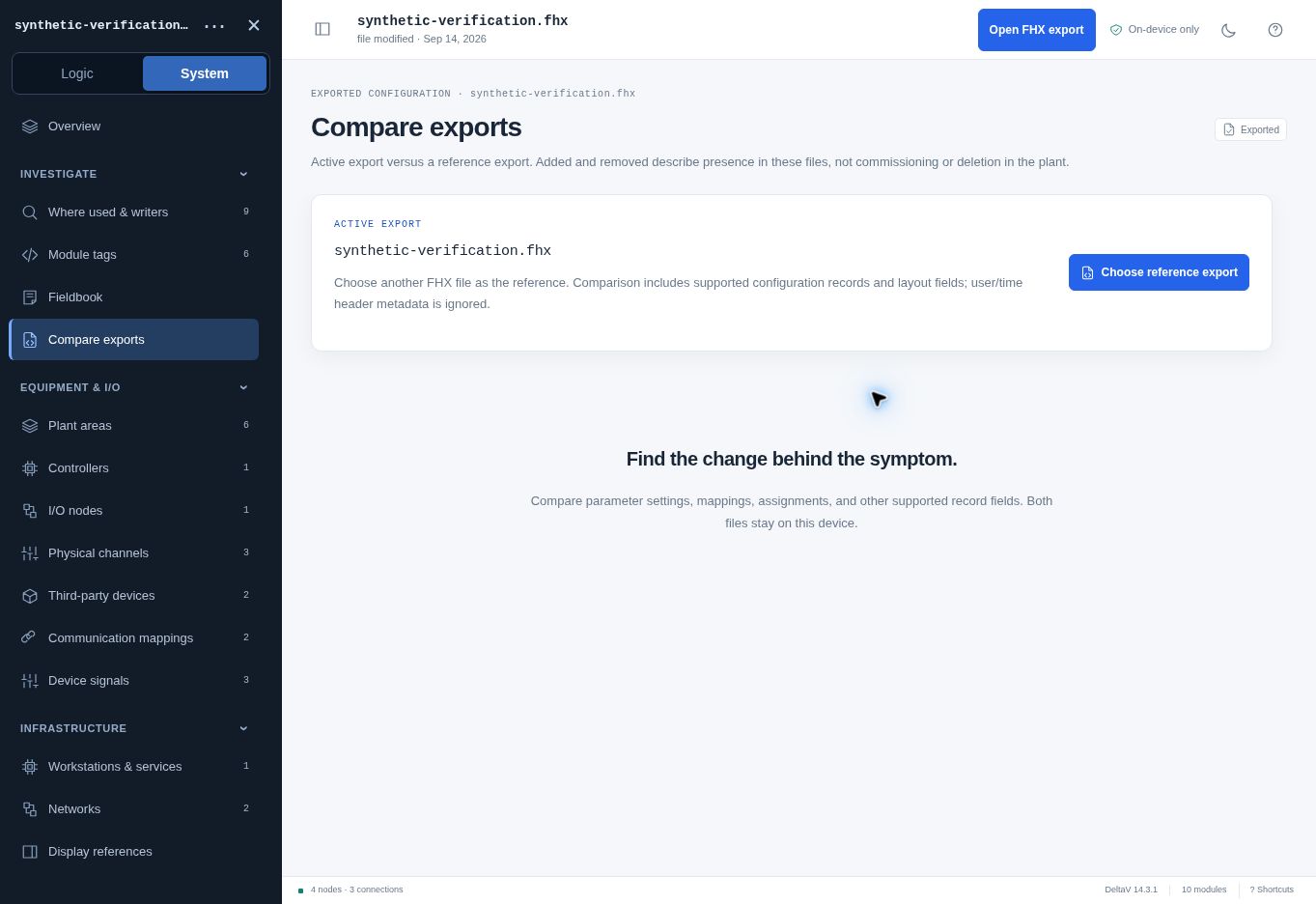
- Open the intended active export. In System, choose Compare exports.
- Choose reference export and select the file to compare against. Confirm both filenames before interpreting any differences.
- Where comparison completes, inspect Added, Changed, and Removed records, filter the results, and open a record for Reference versus Active field differences.
- Use Export summary to retain the supported-record comparison. Record the file identities and scope with the result.
Added and Removed describe presence in these two files, not commissioning or deletion in the plant. Different export scopes can create apparent changes. Unsupported record types and live state are outside the comparison.
If indexing fails, keep the active workspace, record the error, and check build access, file compatibility, and available memory. A failure is not a no-differences result.
FULL APPLICATION · INVESTIGATION RECORDS
Keep evidence in Fieldbook
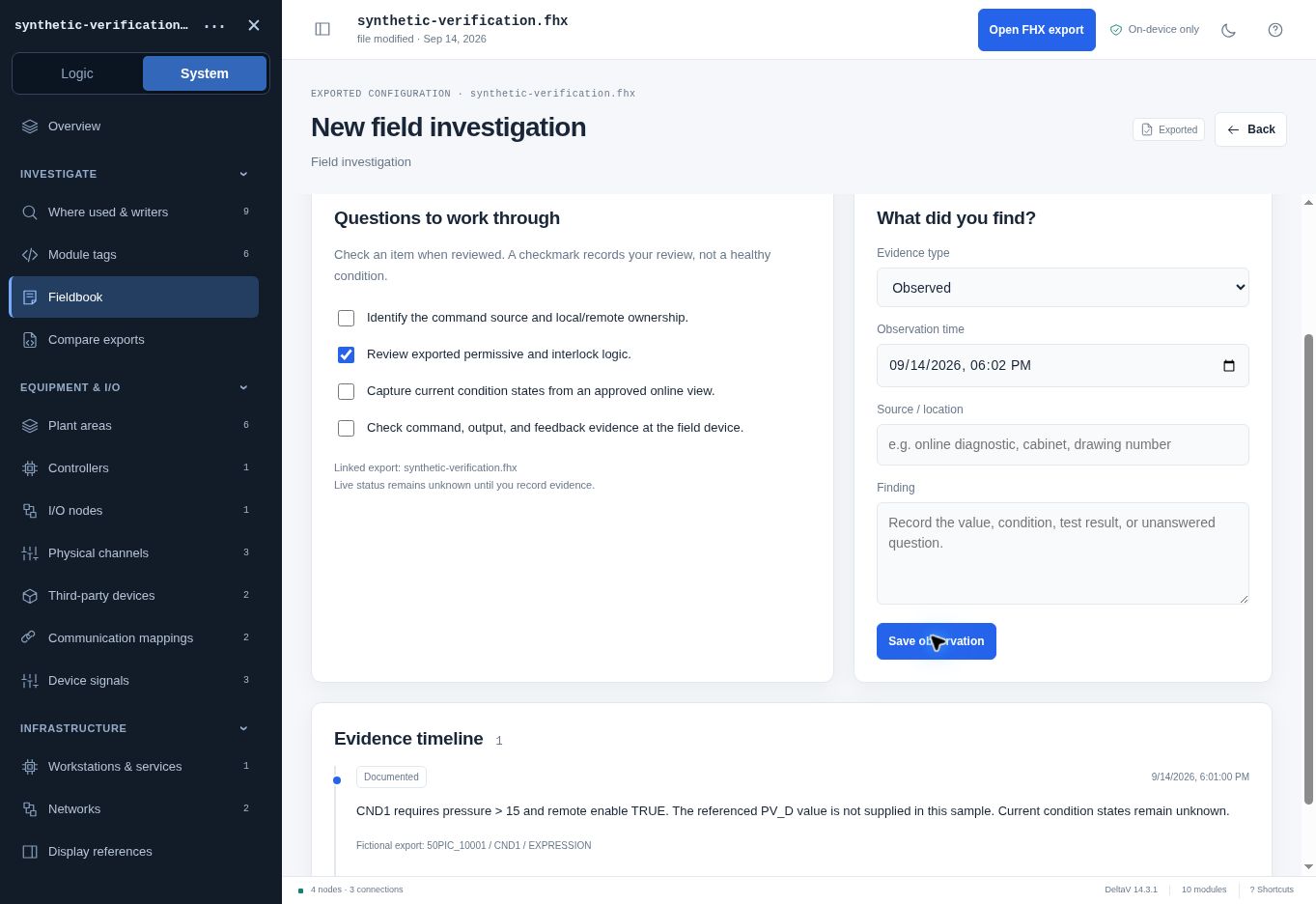
- Open System, then Fieldbook, and choose New investigation. Give the case a useful title and choose the relevant symptom.
- For each entry, select the evidence type: Observed, Documented, Hypothesis, Open question, or Resolution. Enter the time, source/location, and finding.
- Choose Save observation. Verify the entry appears in the evidence timeline. Keep exported facts separate from current field observations and your interpretations.
- Use Export notes for the case or Export fieldbook for the collection. Keep related attachments with the project record separately.
A checklist tick means a question was reviewed. Resolved is a user-selected case status, not a system health determination. Do not label a configuration-only conclusion as an observed current condition.
FULL APPLICATION · PERSISTENCE
Save the right things before leaving
Local processing and local storage serve different purposes. Retain an explicit project record rather than assuming the browser is your archive.
| Item | Behavior in the documented build | What to retain |
|---|---|---|
| Open FHX export | Indexed in the active browser session; reopen after reload. | Original approved FHX and snapshot identity. |
| Fieldbook notes and case metadata | Saved in local browser storage when available. | Export notes / Export fieldbook after meaningful work. |
| Evidence attachments | File bytes are session-only; filenames are retained. | Separate original files in the project record. |
| Moved diagram layouts | Session display changes; original FHX is unchanged. | Capture a useful view if needed; do not treat movement as a logic edit. |
| Comparison summary | Downloadable after a successful supported comparison. | Summary plus named reference and active files. |
| Public sample progress | In-memory demonstration state; Restart or reload clears it. | Download sample finding if useful. |
Browser profiles and website origins have separate storage. Moving to another domain, changing browsers, clearing site data, or using private browsing can change what notes are available. A note export is not evidence of an implemented import/restore facility.
The captured full application processes configuration on-device. Access and data handling still need to match your organization's rules and the agreed evaluation arrangement. Do not put configuration details or secrets into a public inquiry form.
Keep the exported investigation, original attachments, snapshot identity, and verification actions together. Confirm files open in their intended destination before ending an important session.
REFERENCE · NAVIGATION
Desktop and phone controls
Use the visible controls first. Keyboard shortcuts speed up repeated desktop work when focus is outside an input or dialog.
| Control | Action in the full application |
|---|---|
| Ctrl/Cmd + K | Open command search for modules and library records. |
| / | Focus the relevant module or system search. |
| O | Open an FHX export. |
| 1 / 2 / 3 / 4 | Diagram / Parameters / Expressions / References in Logic. |
| F; + / - | Fit the diagram; zoom in or out. |
| M | Toggle Move blocks. Display layout changes do not modify the export. |
| ? | Open keyboard shortcuts and help. |
| Escape | Dismiss a dialog or leave applicable focused views/inspector. |
| Tab + Enter on a diagram block | Reach and inspect a block. Arrow keys move focus among blocks. |
On phones, use Toggle explorer to open navigation. Select Logic or System, choose a destination, and return to the working surface. Use the dedicated expression reader for long text and its explicit size/wrap controls.
Right-click or the visible actions button opens contextual actions. Long-press support is intended to coexist with scrolling and pinching; use the visible menu when gestures are awkward.
Use Fit to recover the diagram after panning or zooming. Turn off Move blocks when you want ordinary navigation. Restore exported positions applies to the current layout scope.
Physical iPhone/Safari behavior has not been certified by these desktop captures. Test file selection, scrolling, long expressions, and gesture behavior on the actual device before a field visit.
REFERENCE · TROUBLESHOOTING
Recover without losing the question
| What you see | What to do next |
|---|---|
| A known module is missing | Clear search, plant-area, and starred filters. Confirm Modules versus Library and verify the export identity. |
| No diagram structure | Open Parameters, Expressions, or References. The record may contain values without a supported diagram. |
| Unknown reference or endpoint | Keep the exact path. Check the export scope and required definitions; do not substitute a similar name. |
| Owner resolves but value is absent | Inspect the target parameter. Owner resolution is not full value resolution; record the missing value explicitly. |
| Diagram is off-screen | Use Fit. Check whether Focus diagram or Move blocks is active. |
| Long text is hard to read | Open Read expression, adjust text size, and toggle Wrap lines. Close to return to context. |
| Import or comparison fails | Record the exact error and file identity. Check authorized build access and compatible text FHX. Try a smaller authorized export if memory is a constraint. |
| Comparison shows no differences | Confirm the two filenames and supported record coverage. This is not proof the plant or every unsupported record is identical. |
| Notes or attachments are missing | Confirm browser, profile, and origin. Check exported notes and separately saved attachments; session-only bytes cannot be recovered from filenames. |
| A value looks wrong | Recheck module/composite instance, origin, override, type and units against trusted source interpretation before using the result. |
For support, provide the application/build, browser/device, steps, expected versus actual result, and a fictional or approved minimized reproduction. Agree on a handling route before sending an actual customer export.
Do not infer that a parser error, empty search, or incomplete export means equipment was removed or configuration is safe. Preserve the uncertainty in your finding.
WORKED EXAMPLE & GLOSSARY
Write a finding another engineer can follow
A useful investigation record states what the export establishes, what you inferred, and what remains to be checked.
| Term | Meaning in this guide |
|---|---|
| Snapshot | The configuration represented by one named export. |
| Module / block | A control record and a function block inside its diagram. |
| Definition / instance | Reusable configuration versus its use in a particular context. |
| Override / provenance | A context-specific setting and evidence of where a value came from. |
| Binding / reference | A configured path linking parameters or records. |
| Potential writer | A candidate assignment site; execution is not established. |
| I/O owner / execution controller | The configuration parent collecting I/O versus the controller assignment. |
| Unresolved | A relationship or value that available evidence cannot fully establish. |
Question: What does the feed-header condition require, and where is its pressure input configured?
Exported facts: In 50PIC_10001, CND1/EXPRESSION requires AI1/OUT.CV > 15 AND 50HS_10001/PV_D.CV = TRUE. AI1/IO_IN references //50PT_10001_FIELD/FIELD_VAL_PCT. The physical-channel record identifies DEMO_IO01, CHARM slot 1, channel position 1, and controller assignment DEMO_CTRL01.
Open configuration question: the sample includes the 50HS_10001 module but supplies no exported PV_D.CV value. Keep that gap explicit.
Live checks: establish current pressure, remote enable state, loaded configuration, and installed wiring with approved observations. The export alone does not prove a READY state, successful logic execution, or the cause of a failure.
ABOUT THIS EDITION
Scope and verification
Screenshots were captured from the actual customer-view application using synthetic-verification.fhx. The public guided sample is a separate implementation. No customer export, private raw-source view, or owner credential is included.
Logic navigation, inspection, expression reading, composite navigation, system records, and saving a fictional Fieldbook finding were exercised during preparation. Comparison setup was captured; reference indexing failed in that browser session, so completed comparison is not represented as verified. Physical-phone validation remains separate.
This guide is separate from the internal Development & Business Handbook. Use the release and access arrangements supplied for your evaluation.